Plan and track follow-ups
Plan the next call or message for each lead, see what's due today, and note how each one went.
- Time:
- about 8 min · 13 steps
- You need:
- A few leads in Kylip · 8 minutes
Most enquiries need two or three touches before they join. A follow-up is a reminder to call, WhatsApp, email or meet a lead at a set time. Kylip lines them all up by date, shows you what's overdue, and can email each person their list every morning.
Each lead has one planned follow-up at a time. When you mark it done, you can plan the next one in the same step.
Plan a follow-up on a lead
Step 1: Open the lead
In the left menu, click Leads, then click the lead's name. The lead opens on its own page.
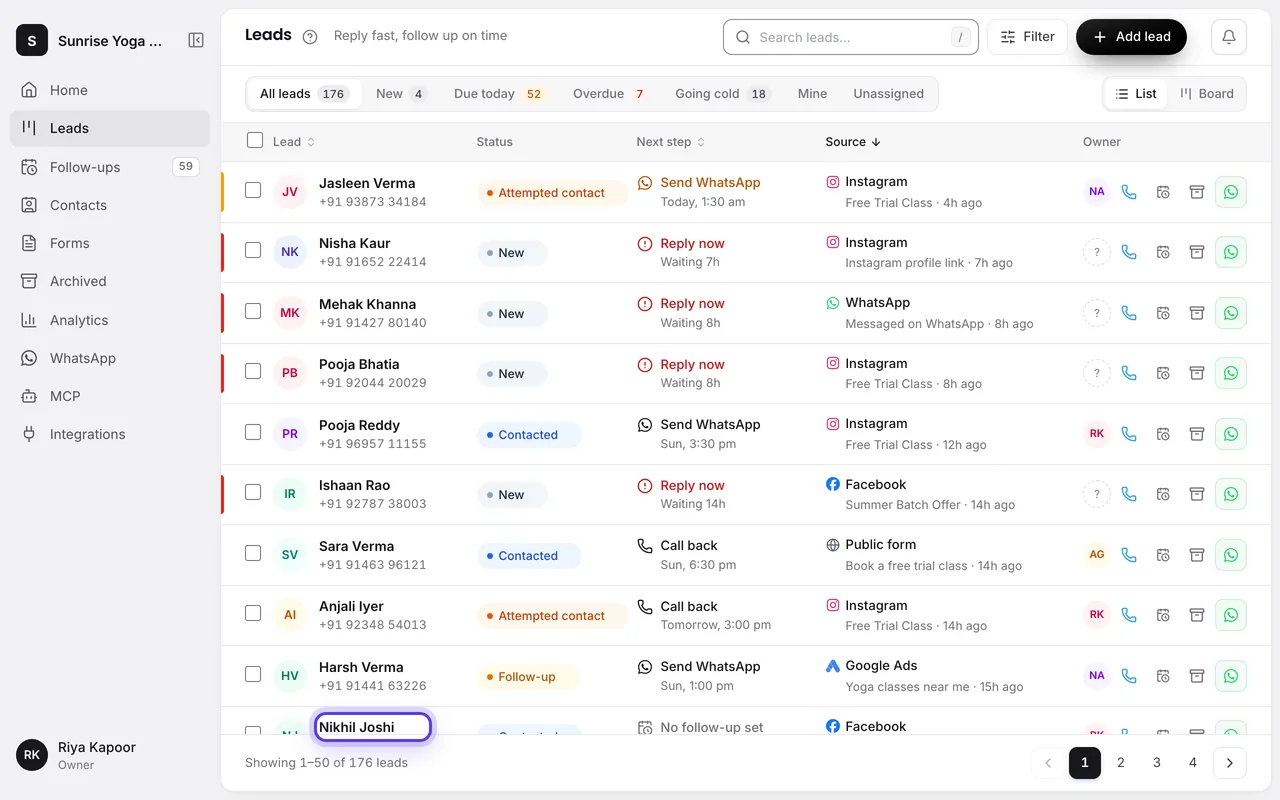
Click a lead's name to open it. Step 2: Click Schedule follow-up
On the right, find Follow-ups. If nothing is planned it says No follow-up scheduled. Click Schedule follow-up.
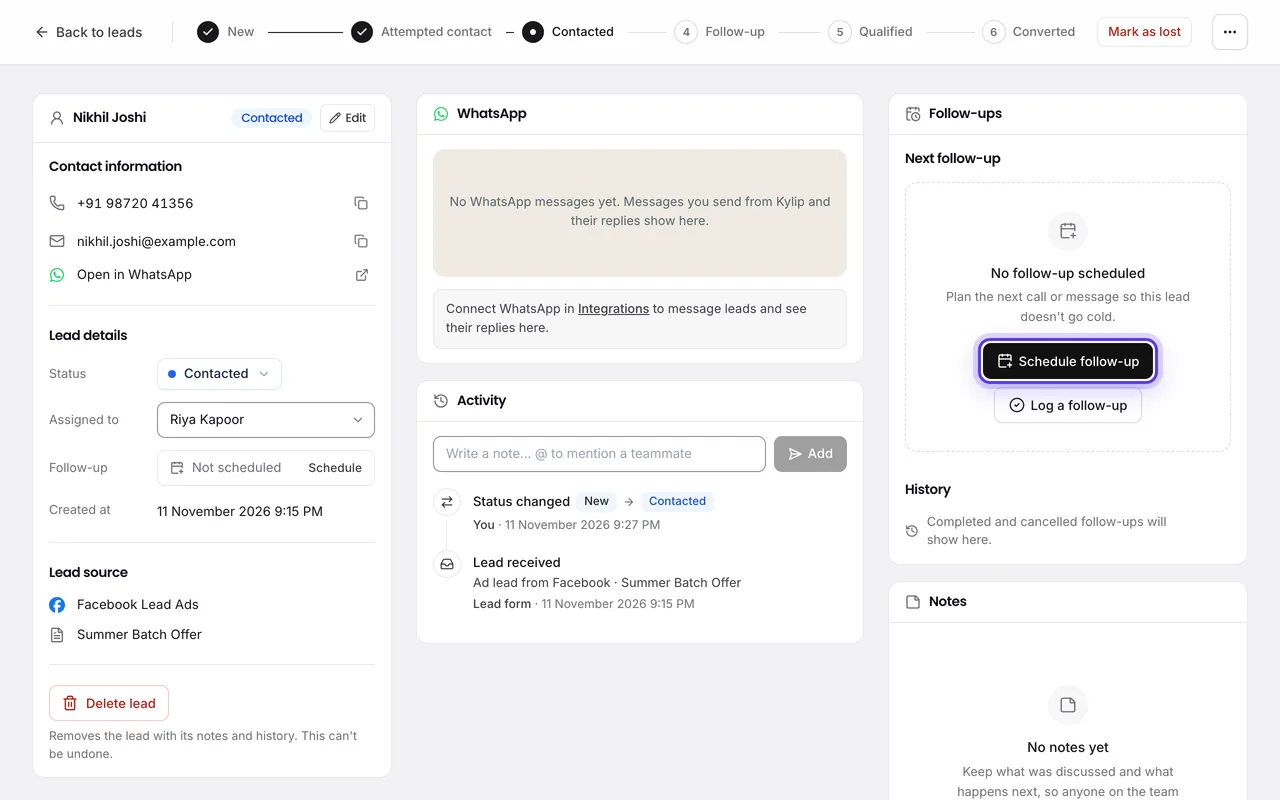
The Follow-ups box on a lead's page. Step 3: Choose how, when and a note
Under How, pick Call, WhatsApp, Email or Meeting. Under When, tap a quick time like Tomorrow, 10 am or pick a date and time. Add a short note if it helps, then click Schedule.

Quick times save typing: In 1 hour, Tomorrow, In 3 days, Next Monday. Step 4: Check it on the lead
The follow-up now shows with its date, its type and a label such as Due today, Overdue or Upcoming. Below it are Mark as done, Reschedule and Cancel follow-up.

A planned follow-up on a lead. Step 5: Or plan it from the list
In the Leads list, each row has a small calendar button. Click it to pick a quick time straight away, or Pick date, time and type… for the full form.

The calendar button on a lead's row.
See what's due on the Follow-ups page
Step 6: Open Follow-ups
In the left menu, click Follow-ups. The number beside it is how many are due today or overdue. The page lists them by day, with overdue ones first in red.
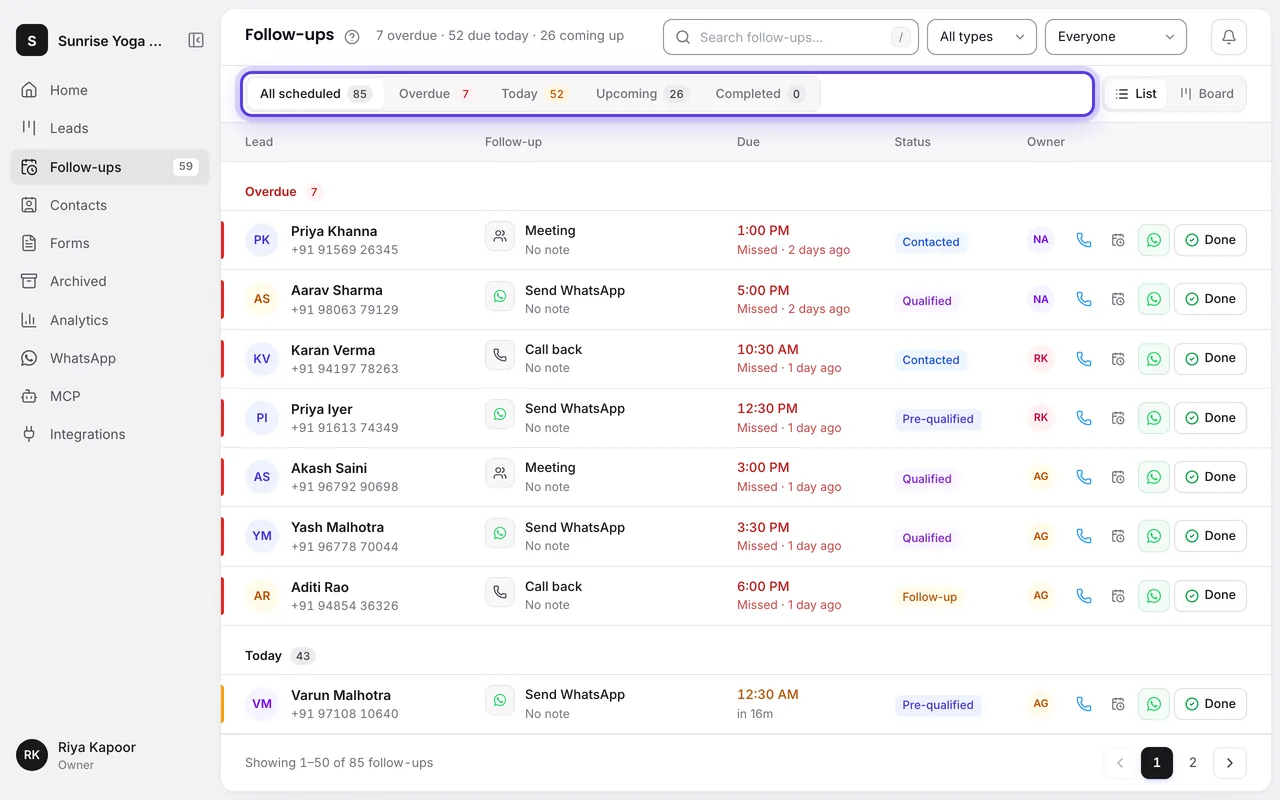
Tabs at the top filter the list; each shows its count. Step 7: Filter or switch to Board
Use the tabs All scheduled, Overdue, Today, Upcoming and Completed. Search by name, filter by Type or by teammate, or click Board to see columns for Overdue, Today, Tomorrow, This week and Later.

Board layout groups follow-ups by when they're due.
Mark a follow-up done
Step 8: Click Done
After you've called or messaged the lead, click Done on their row. You can also click Mark as done on the lead's own page.

Each row has Call, WhatsApp and Done buttons. Step 9: Pick the outcome
Choose what happened: Spoke with them, No answer, Asked to call back, Left a message or Not interested. Add a line under What happened if you like.
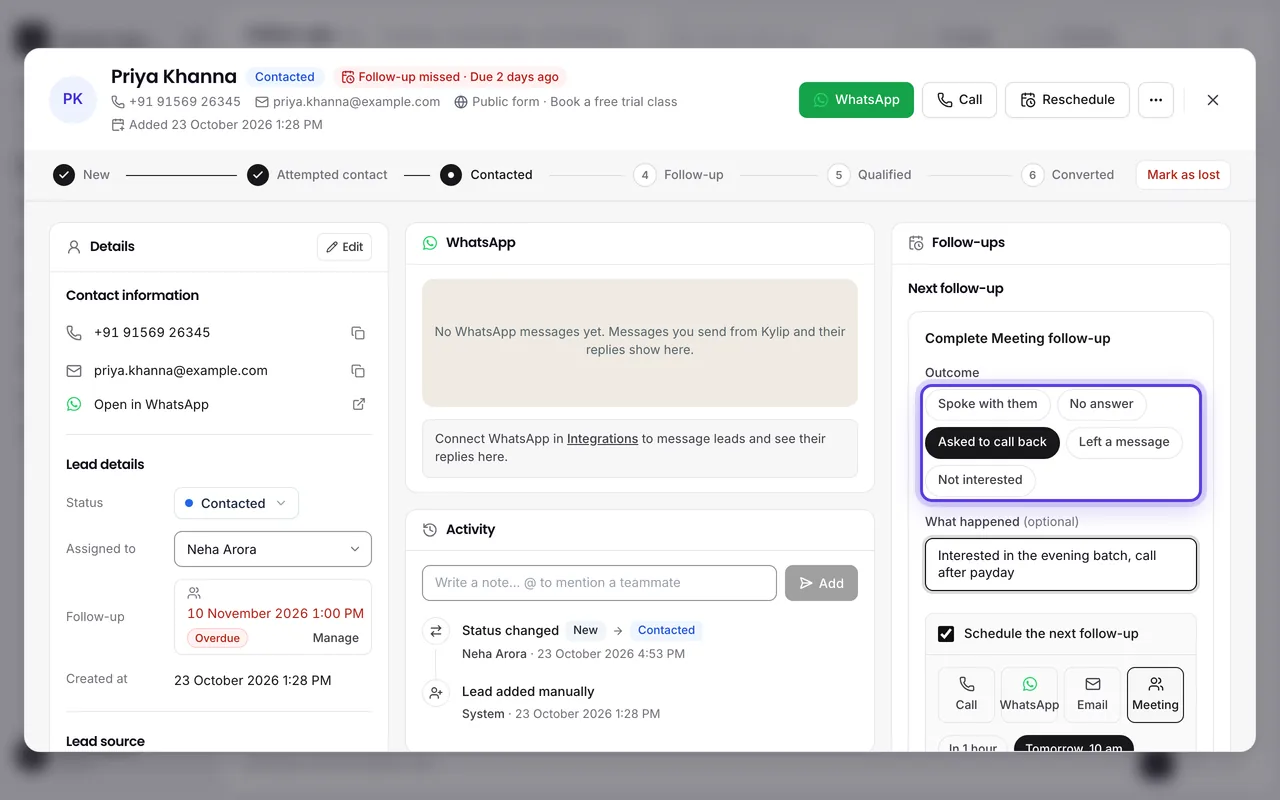
The outcome is saved in the lead's follow-up history. Step 10: Plan the next one and save
Tick Schedule the next follow-up to book the next touch in the same step. It's ticked for you when you pick No answer, Asked to call back or Left a message. Click Mark as done.
Step 11: Look back at completed ones
The Completed tab lists finished follow-ups with their outcome, when they were done and by whom. Each lead's page also keeps them under History.

Empty at first: each follow-up you mark done lands here with its outcome.
Get a daily follow-up email
The daily digest sends each person their follow-ups due today and the ones they've missed. Owners and admins switch it on for the whole team.
What the digest contains
- Part
- Subject
- What you see
- "Your follow-ups today" with the counts, for example "3 due today · 2 overdue"
- Part
- The list
- What you see
- Up to 8 leads by name with the time, overdue ones marked in red, then "and 4 more" if there are others
- Part
- The button
- What you see
- Open today's follow-ups, which opens the Follow-ups page
Step 12: Switch on the digest
At the bottom of the left menu, click your name, then Lead handling. In Daily follow-up digest, turn on Send the digest.

Daily follow-up digest, in Settings → Lead handling. Step 13: Pick the hour and save
Under Send at, choose the hour, in your workspace's time zone. Keep Also send it by email on to get it by email as well as in Kylip's notifications. Click Save changes.
Common problems
There's no Schedule follow-up button on a lead.
The lead is in a closed stage, such as Converted or Lost. It says "Reopen the lead first to plan a follow-up." Change its status to an open stage, then plan one.
I can't pick a time in the past.
Follow-ups are for what's still to do. To record a call you already made, use Log a follow-up on the lead's page instead.
Mark as done stays grey.
Pick an outcome first. If Schedule the next follow-up is ticked, it also needs a date and time.
A teammate's follow-ups don't show for me.
If your access is Only their leads, you only see follow-ups on your own leads. People who see all leads can pick a teammate in the filter at the top of the Follow-ups page.
I'm not getting the daily email.
Check that Send the digest and Also send it by email are both on in Settings → Lead handling. It only goes to people with something due today or overdue, once a day after the hour you picked.
Was this helpful? Message us on WhatsApp
Still stuck?
Message the Kylip team on WhatsApp and a real person will help you. Or email info@kylip.app.