Get leads from Google Ads lead forms
Send every Google Ads lead form enquiry straight into Kylip by pasting two values into Google Ads.
- Time:
- about 10 min · 10 steps
- You need:
- A Google Ads campaign with a lead form · Owner or admin access in Kylip · 10 minutes
When someone fills in the lead form on your Google ad, Google Ads can pass their details to Kylip within seconds. There is nothing to sign in to and no approval to wait for. You copy two things from Kylip and paste them into your lead form's settings in Google Ads.
The two things are:
Webhook URL: a private web address for your Kylip workspace. Google Ads sends each new lead to it.
Key: a secret code, like a password. Google sends it with every lead, so Kylip knows the lead really came from your Google Ads.
Copy your details from Kylip
Step 1: Open Integrations
In the left menu, click Integrations. Find the Google Ads lead forms card and click Connect.
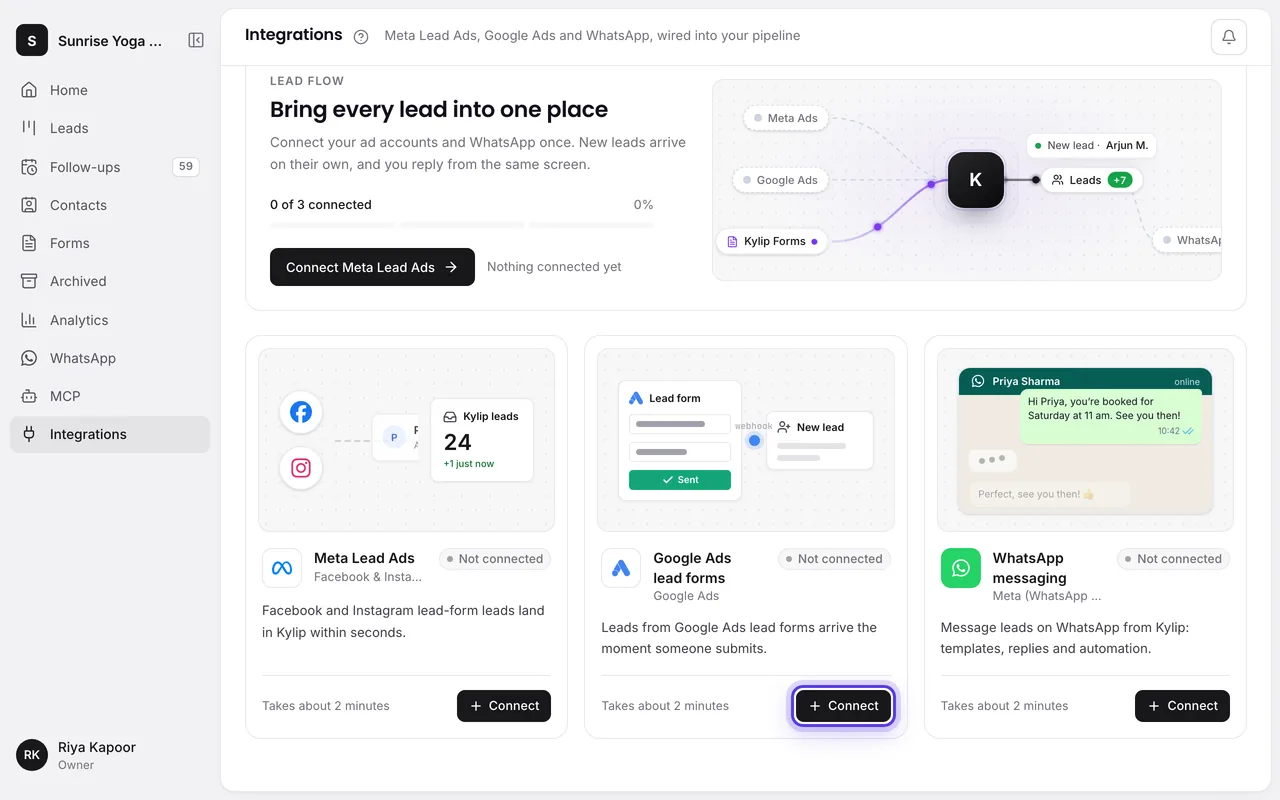
Google Ads lead forms is the middle card. Step 2: Click Set up Google Ads
A window opens called Connect Google Ads lead forms. It shows what you get and what Kylip will ask. Click Set up Google Ads. You stay inside Kylip.

This opens the Google Ads page in Kylip. Step 3: Copy the Webhook URL and Key
Under What to paste into Google Ads you see a Webhook URL and a Key. Click Copy next to each one when Google Ads asks for it. They belong to your workspace only, so keep the key private.
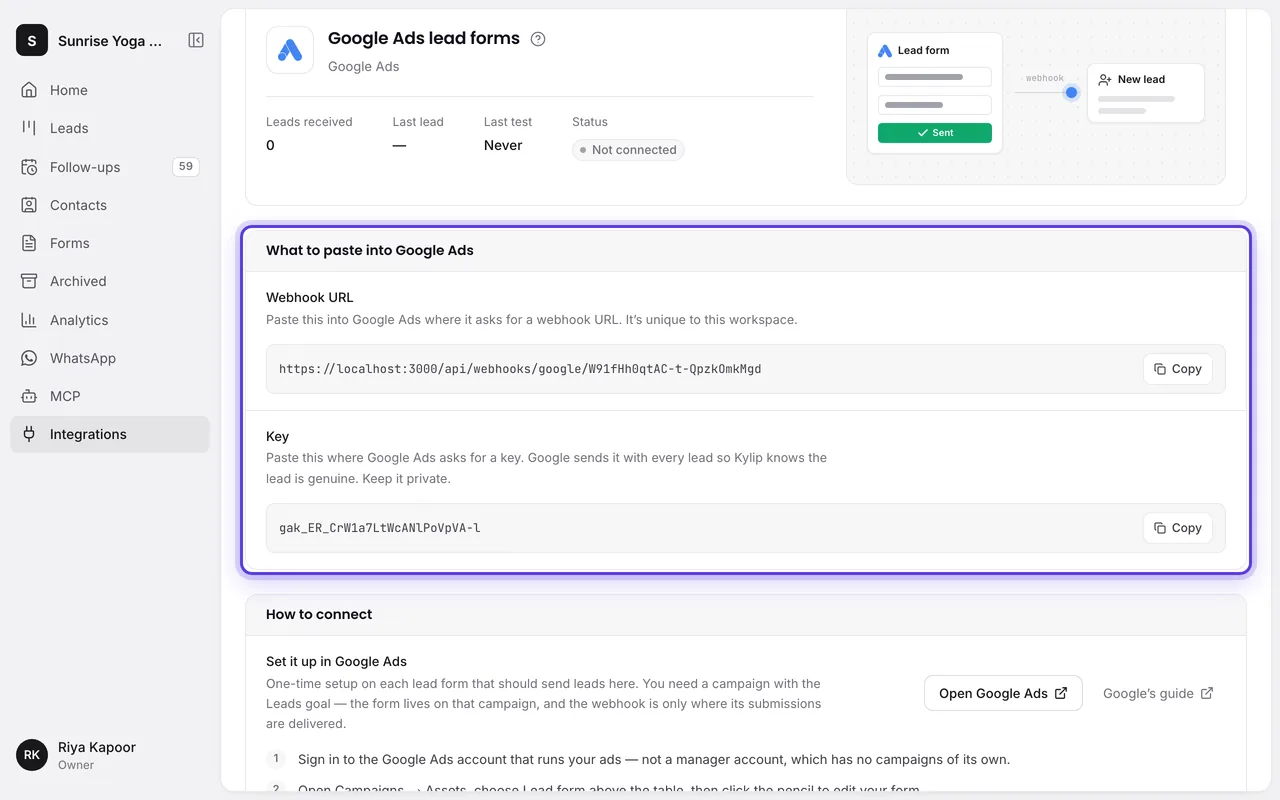
Always use the Copy buttons, so nothing is missed or added.
Paste them into your Google Ads lead form
These steps happen on the Google Ads website, so there are no Kylip screenshots here. The same steps are also listed under How to connect on the Google Ads page in Kylip, with an Open Google Ads button and a link to Google's guide.
Step 4: Sign in to the right account
Sign in to the Google Ads account that runs your ads. Don't use a manager account: it has no campaigns of its own, so it has no lead forms.
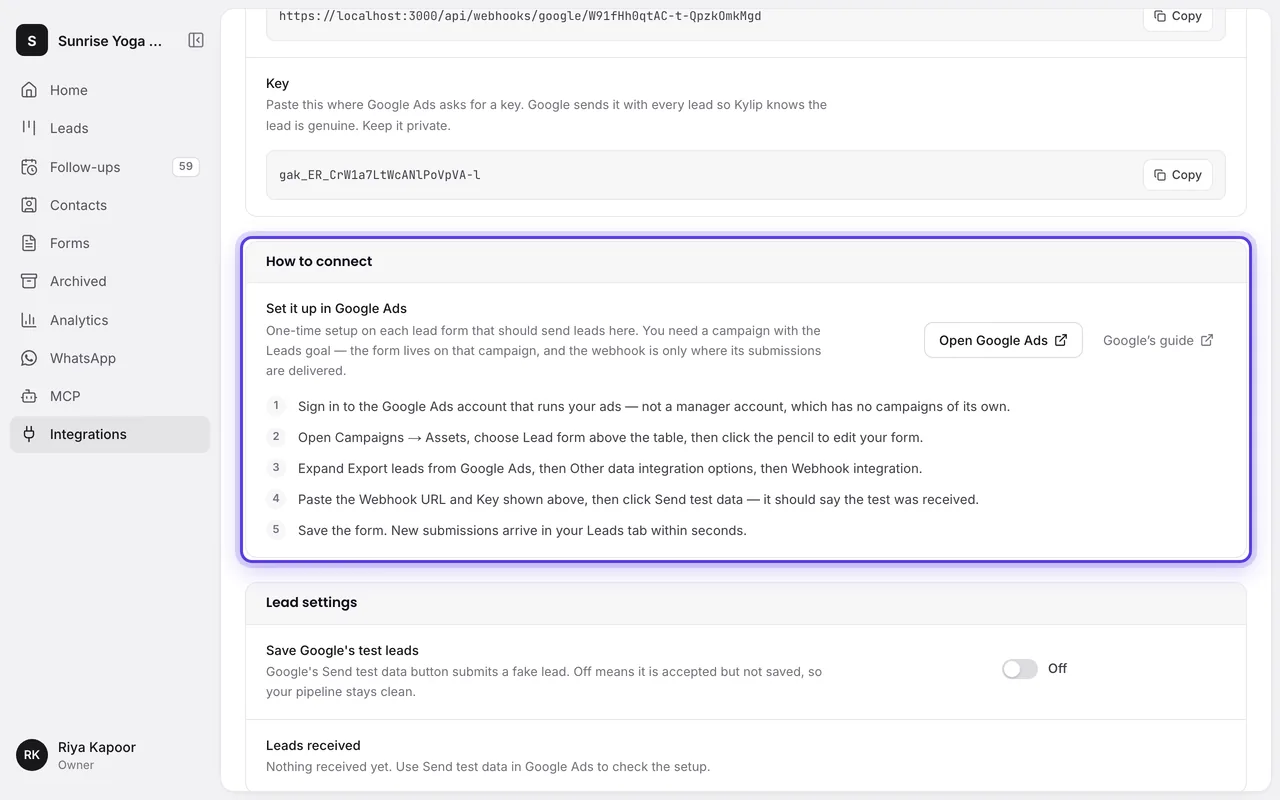
Kylip lists the same steps, in case you need them while you work. Step 5: Open your lead form
In Google Ads, go to Campaigns → Assets. Above the table, choose Lead form. Click the pencil next to your form to edit it.
Step 6: Find Webhook integration
Scroll down in the form and expand Export leads from Google Ads. Then open Other data integration options, then Webhook integration.
Step 7: Paste the URL and key
Paste Kylip's Webhook URL into the webhook URL box. Paste Kylip's Key into the key box. Check there are no spaces before or after.
Step 8: Send test data
Click Send test data in Google Ads. It should say the test was received. If it shows an error, see Common problems below.
Step 9: Save the form
Save the lead form in Google Ads. From now on, every new submission arrives in your Kylip Leads within seconds. Repeat these steps for each lead form that should send leads to Kylip. You use the same URL and key every time.
Check it works
Step 10: Check the Google Ads page
Go back to the Google Ads page in Kylip. After a test, Status changes from Not connected to Test received, and Last test shows when it came. After your first real lead, it says Connected, and Leads received counts every lead.

Leads received tells you what has come in so far.
Common problems
Send test data shows an error in Google Ads
Copy both values again from Kylip with the Copy buttons and paste them again. If the key doesn't match, Kylip turns the lead away with Invalid key. If the web address is cut short or changed, Kylip answers Unknown webhook. Make sure there are no extra spaces, and that you pasted the URL and the key into the right boxes.
The test worked, but I don't see a test lead in Leads
That is expected. Save Google's test leads is off by default, so the test is accepted but not saved. The Google Ads page in Kylip still says Test received. Turn the switch on if you want test leads in your list. Test leads never get an automatic WhatsApp reply.
I can't find Lead form or Webhook integration in Google Ads
Check you are signed in to the account that runs the ads, not a manager account. Lead forms only exist on campaigns with the Leads goal. Then go to Campaigns → Assets and choose Lead form above the table.
Leads from before I set this up are missing
Google Ads only sends leads that come in after you save the webhook in the lead form. Older leads stay in your Google Ads account.
The same person shows up twice
If Google sends the same lead twice, Kylip keeps only one. But if the same person fills in your form again, Kylip saves it as a new lead, because a repeat enquiry is a fresh chance to sell. The lead's history notes Repeat enquiry and names the earlier lead, so your team can see both.
A lead's name shows as an email, a phone number or "Google Ads lead"
Your lead form didn't ask for a name. Kylip then uses the email, then the phone number, and if neither is there, Google Ads lead. Add a name question to the lead form in Google Ads.
Was this helpful? Message us on WhatsApp
Still stuck?
Message the Kylip team on WhatsApp and a real person will help you. Or email info@kylip.app.