Reply to new leads instantly
Send a WhatsApp reply the moment a lead comes in, and get told when a lead is left waiting.
- Time:
- about 10 min · 11 steps
- You need:
- WhatsApp connected to Kylip · An approved WhatsApp template · Owner or admin access · 10 minutes
A lead who hears back in the first few minutes is far more likely to join. Kylip can reply for you on WhatsApp as soon as someone fills in your ad form or website form, and it can warn you when a new lead has been waiting too long for a call.
All of Kylip's automatic WhatsApp messages live in one window: WhatsApp → Automations. They go out from your own WhatsApp Business number, so connect WhatsApp first.
Open the automations
Step 1: Open WhatsApp
In the left menu, click WhatsApp. At the top right, click Automations. The small green badge shows how many automations are on.
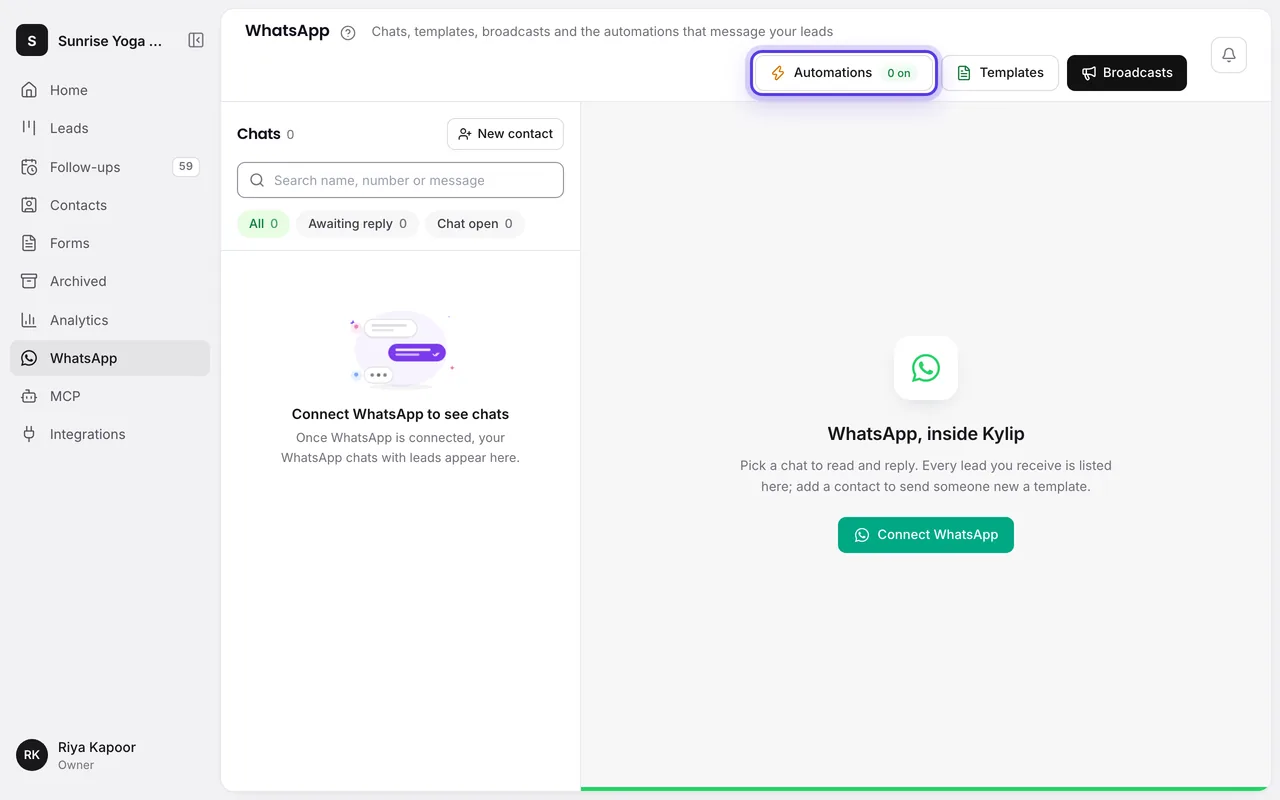
The Automations button sits at the top of the WhatsApp page. Step 2: See every automation
A window opens called WhatsApp automations. The list on the left has three groups: When a lead arrives, In the chat and Follow-up. Click any one to see its settings on the right.

Each automation shows On, Off or what it needs before it can run. Step 3: Connect WhatsApp first
Until your number is connected, every automation shows Needs WhatsApp with a lock, and the right side says Connect WhatsApp first. Click Connect WhatsApp and follow Connect WhatsApp. Then come back here.

What a new workspace sees before WhatsApp is connected.
Reply to Facebook, Instagram and Google ad leads
Once WhatsApp is connected, these settings appear when you click Instant reply to ad leads.
Step 4: Pick the reply template
Under Template, choose an approved template. A phone preview on the right shows how it will look, with sample values. Kylip fills in each lead's name, your business name, the ad source and the campaign.
Step 5: Choose which ads to reply to
Under Reply to leads from, tick Facebook & Instagram lead ads, Google Ads lead forms, or both.
Step 6: Switch it on and save
Turn the switch at the top right to On, then click Save changes at the bottom. From now on, every new ad lead with a phone number gets your reply straight away.
Reply to your own Kylip forms
Each Kylip form picks its own reply, so a trial-class form and a fees enquiry form can send different messages.
Step 7: Set the reply on each form
In the automations window, click Instant reply to form responses, then Choose in a form. Open your form, go to its Settings tab, and under Automatic WhatsApp reply pick a template in Message to send. Save the form as usual. See Forms for the full steps.
The other WhatsApp automations
Each one works the same way: pick it in the list, choose a template or write the message, switch it On and click Save changes.
What each automation does
- Automation
- New-lead alert to your team
- What it does
- The teammate a new lead goes to gets a WhatsApp message with the lead's details. Unassigned leads alert every owner and admin with a number.
- You choose
- An alert template, and each teammate's WhatsApp number
- Automation
- Welcome reply to new chats
- What it does
- Greets anyone who messages your number for the first time. Sent once per person.
- You choose
- Your own message (no template needed)
- Automation
- Away message
- What it does
- Replies to people who write outside your business hours. At most once every 12 hours to the same person.
- You choose
- Your message, open days and hours
- Automation
- Follow-up reminder
- What it does
- Reminds the lead before a follow-up you have scheduled.
- You choose
- A template, and how long before (15 minutes to 1 day)
- Automation
- No-reply nudge
- What it does
- If a lead goes quiet after your message, sends one gentle follow-up.
- You choose
- A template, and how many days to wait (1 to 30)
- Automation
- Stage messages
- What it does
- Sends a template when a lead moves to a stage, like a thank-you when they convert.
- You choose
- A template for each stage, or No message
Step 8: Pick another automation
Click any name in the list, for example Away message. Its settings and a phone preview appear on the right once WhatsApp is connected.
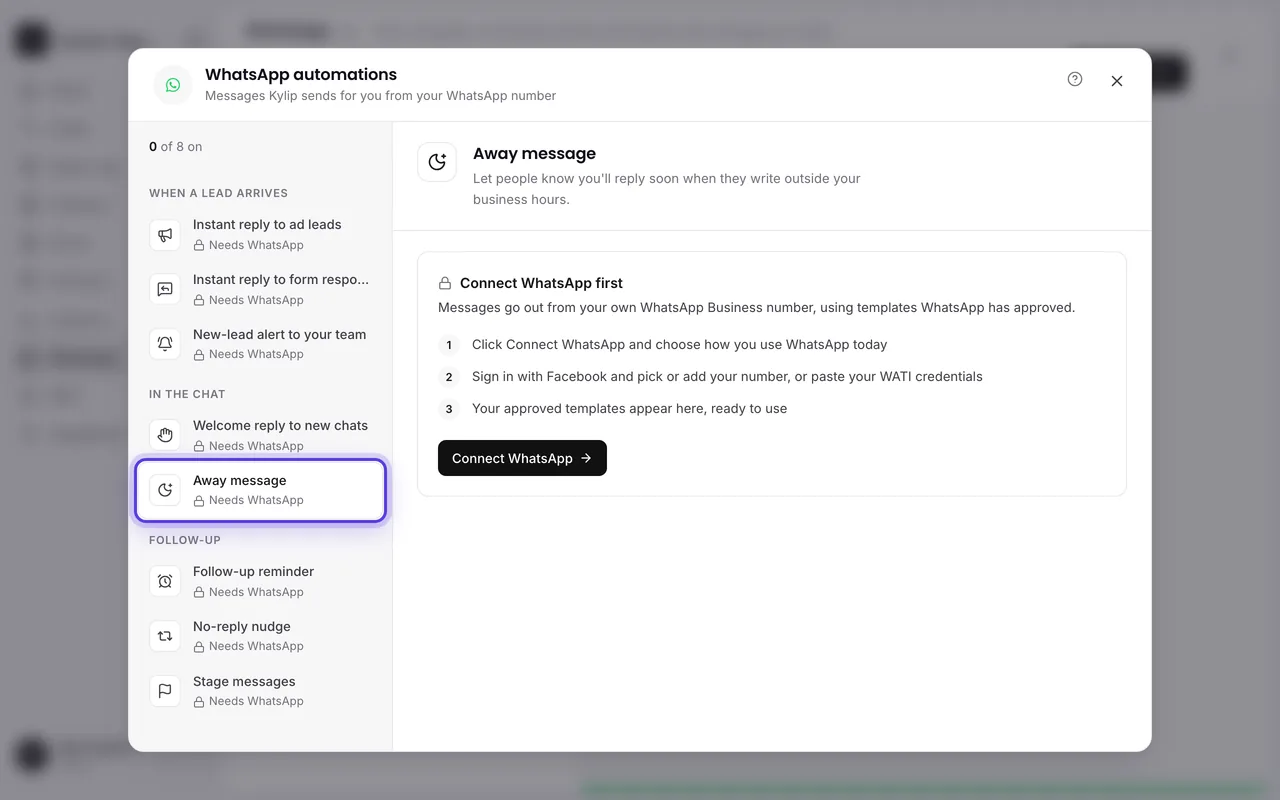
Click an automation in the list to see its settings.
Get told when a new lead is waiting
The speed-to-lead alert doesn't message the lead. It tells you or your teammate when a new lead has had no call or message for too long. It works even without WhatsApp connected.
Step 9: Open Settings → Lead handling
At the bottom of the left menu, click your name. Under Settings, click Lead handling.

Your name at the bottom of the left menu opens Settings. Step 10: Switch on the alert
In Speed-to-lead alert, turn on Alert when a new lead waits. Calling, messaging or moving the lead out of New counts as contact.
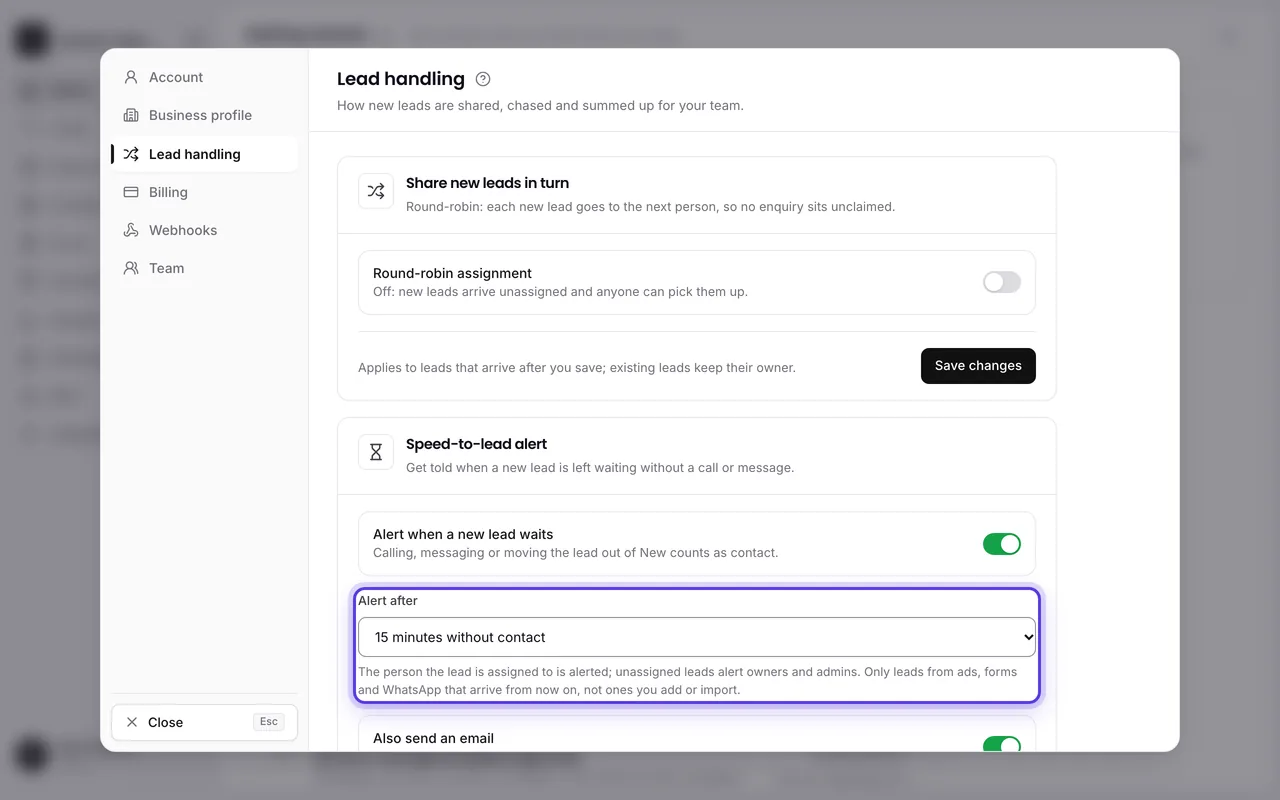
Speed-to-lead alert, in Settings → Lead handling. Step 11: Choose the wait and save
Under Alert after, pick how long a lead may wait, from 5 minutes without contact to 4 hours without contact. Turn on Also send an email if you want an email as well as a Kylip notification. Click Save changes.
Common problems
Every automation says "Needs WhatsApp".
Your WhatsApp number isn't connected yet. Click Connect WhatsApp in the automations window and follow Connect WhatsApp.
The template list says "No approved templates yet".
Automations that send a template can only use templates WhatsApp has approved. Create one and wait for approval; see WhatsApp templates.
The Save changes button stays grey.
Something it needs is missing. For Instant reply to ad leads, pick a template and tick at least one ad source. For New-lead alert to your team, pick a template and add at least one WhatsApp number. For Away message, keep at least one open day.
A lead didn't get the instant reply.
Replies only go to leads that arrive after you saved, and only to leads with a phone number. Leads you type in or import don't get the ad reply.
Welcome reply and Away message show "Needs Meta connection".
Your number is connected through WATI, which can only send approved templates. These two need your number connected through Meta.
I can't change anything in these settings.
Only owners and admins can change automations and Lead handling. Ask your workspace owner, or see Team members and roles.
Was this helpful? Message us on WhatsApp
Still stuck?
Message the Kylip team on WhatsApp and a real person will help you. Or email info@kylip.app.