WhatsApp templates
Get the messages Kylip sends to new leads approved by WhatsApp, and fix one that's rejected.
- Time:
- about 10 min · 13 steps
- You need:
- WhatsApp connected to Kylip · Owner or admin access in Kylip · 10 minutes
A template is a message you write once and WhatsApp approves before you can use it, like "Hi Priya, thanks for your enquiry. We'll call you shortly." Kylip fills in the lead's name and other details each time it sends.
Why you need templates
WhatsApp has a 24-hour rule. You can type any message to someone only within 24 hours of their last message to you. To message a new lead who hasn't written to you yet, or someone whose last message was over 24 hours ago, you must send an approved template. Once they reply, you can chat freely for 24 hours.
So the first message to every new lead from an ad or a form is always a template. That's why it's worth setting up a few before your leads arrive.
Step 1: Open WhatsApp in Kylip
In the left menu, click WhatsApp. Then click Templates at the top of the page.
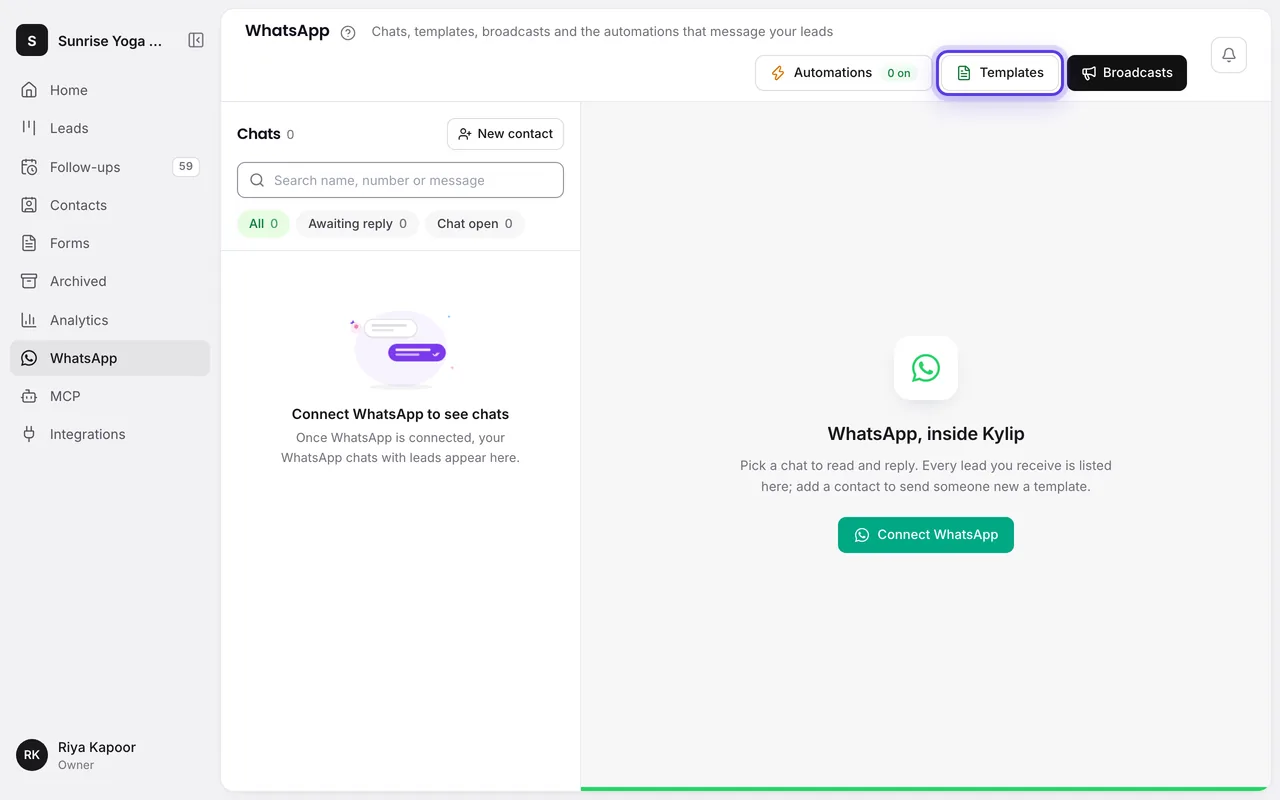
Templates is at the top of the WhatsApp page. Step 2: Connect WhatsApp first
Templates live on your WhatsApp Business account, so they open only once WhatsApp is connected. Until then, Kylip shows Connect WhatsApp first. Click Connect WhatsApp and follow Connect WhatsApp.
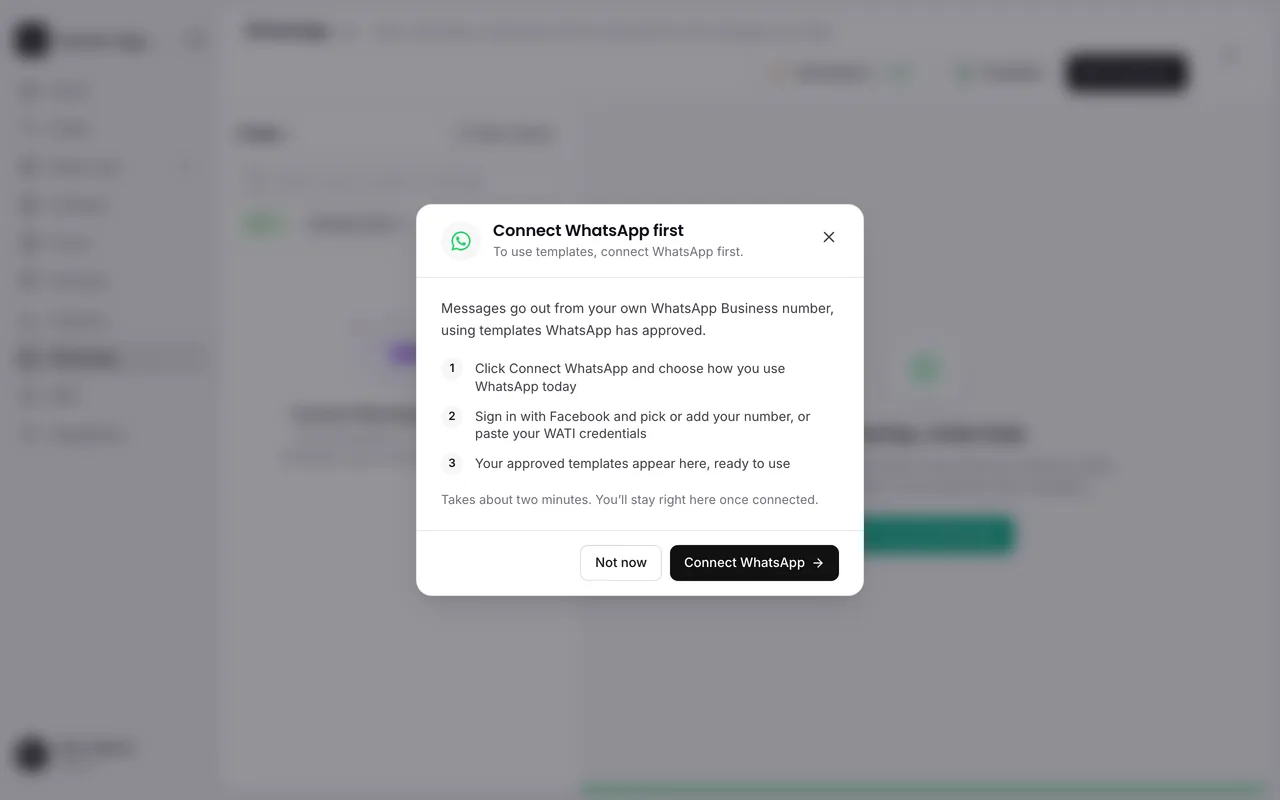
What you see before WhatsApp is connected.
Pick the right templates for your business
Kylip has ready-made templates for every stage of a lead: New lead, Follow-up, Bookings & payments, After the sale, Team alerts and Promotions, in English and Hindi. It recommends a starter set from how your business works.
Step 3: Fill in What you offer
Click your name at the bottom of the left menu, then Business profile. Under What you offer, fill in Main service, pick How customers buy from you and Where your leads come from, then click Save changes. You can do this before WhatsApp is connected.
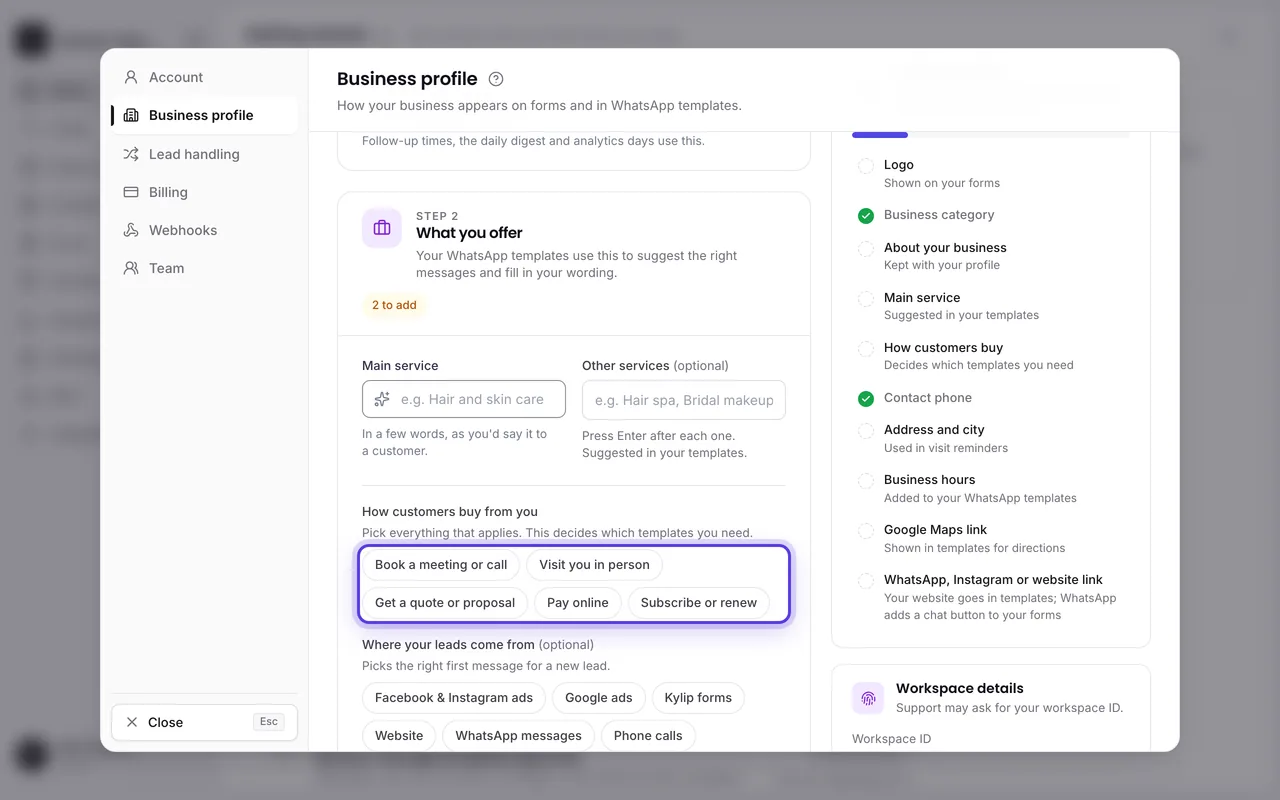
Your answers decide which templates Kylip recommends. Step 4: Click New template
Once WhatsApp is connected, open WhatsApp → Templates and click New template. If you haven't filled in What you offer yet, Kylip asks the same three questions here first.
Step 5: Look at Recommended
The Recommended tab lists the templates your answers call for, each with a reason (for example, "Most leads miss the first call"). The ones marked Essential make up your starter set. If your business category has its own templates, a For tab with your category name shows them too.
Step 6: Submit your starter set
Click Submit all … essentials to send the starter set in one go. Fill in anything flagged (like a link for a payment button), then click Submit … to Meta. Each template goes to Meta for review separately.
Write or change one template
To add a single template, or start from a blank message, use the template window. It checks WhatsApp's rules as you type and shows a preview of how the message will look on the customer's phone.
Step 7: Choose a starting point
In New WhatsApp template, pick a ready-made template and click Use this template, or click Write your own to start blank.
Step 8: Name it and pick a type
Give it a name (only you and Meta see it, e.g. booking_reminder) and a language. Choose Utility for something the customer asked for, like a booking or a reminder. Choose Marketing for offers and invitations. Meta charges more for Marketing.
Step 9: Write the message
Write what the customer reads. Add a variable for anything that changes per customer, like their name or a date, and give each one a sample value. Kylip fills in the standard ones (the customer's name, your business name) by itself.
Step 10: Add buttons, then submit
Optionally add buttons (a quick reply, a link or a call button) and a footer, such as "Reply STOP to opt out". On Review, check the preview and click Submit for review.
Wait for approval
Meta reviews every template. Most reviews finish within minutes; some take up to 24 hours. The Templates list updates when Meta decides.
- Status in Kylip
- In review
- What it means
- Meta is still checking it. It can be sent once it's approved.
- Status in Kylip
- Approved
- What it means
- Ready to use in instant replies, follow-ups and broadcasts.
- Status in Kylip
- Rejected
- What it means
- Meta rejected or paused it, so WhatsApp won't deliver it. Fix it and resubmit.
- Status in Kylip
- Not submitted
- What it means
- Meta hasn't approved it yet. Submit it for review before sending it.
Step 11: Check the status
Open WhatsApp → Templates. Use the All, Approved, In review and Rejected filters at the top. Click Sync if a change you made in WhatsApp Manager or WATI isn't showing yet.
Fix a rejected template
Meta says why it rejected a template. Kylip shows the reason in plain words on the template.
- Meta's reason in Kylip
- It reads as promotional, so it must be filed under Marketing, not Utility.
- How to fix it
- Remove offers and discounts, or change the type to Marketing.
- Meta's reason in Kylip
- The category doesn't fit the message. Try the other category.
- How to fix it
- Switch between Utility and Marketing.
- Meta's reason in Kylip
- The format didn't meet Meta's rules, often a variable placement or a missing sample.
- How to fix it
- Give every variable a sample value, and don't start or end the message with a variable.
- Meta's reason in Kylip
- The content doesn't match the category or language chosen.
- How to fix it
- Check the language matches the words, and the type matches the message.
- Meta's reason in Kylip
- Meta flagged it as possibly misleading.
- How to fix it
- Make it plain and specific: who you are and why you're writing.
Step 12: Open the rejected template
In Templates, click Rejected, then click the template. You'll see Meta rejected this template and the reason.
Step 13: Edit and resubmit
Click Edit and resubmit, change what Meta flagged, then click Resubmit for review. If Meta didn't give a reason, check the wording and the type, then resubmit.
Common problems
Clicking Templates says "Connect WhatsApp first".
Templates live on your WhatsApp Business account, so they open only once WhatsApp is connected. Follow Connect WhatsApp, then come back.
I don't see a New template button.
New template shows only when your number is connected through Meta. With WATI, create templates in WATI under Broadcast → Template messages, then click Sync in Kylip. Only the owner and admins can open Templates.
A template has been "In review" for hours.
Most reviews finish within minutes, but some take up to 24 hours. Click Sync to check for news. If it's still in review after 24 hours, message us on WhatsApp.
It says "Finish linking your number in the WhatsApp Business app".
Meta won't accept new templates until your number's link is approved in the WhatsApp Business app. Open Integrations → WhatsApp, click Reconnect WhatsApp, choose I use the WhatsApp Business app and approve the link on your phone.
My template is approved but won't send: "Add a payment method in WhatsApp Manager".
Meta doesn't send templates until your WhatsApp Business account has a payment method. Open WhatsApp Manager (business.facebook.com), go to Payment settings, add a card, and try again after a few minutes.
It says "Add the picture this template sends".
The template starts with a picture, video or PDF, and Kylip doesn't have the file yet. Open the template and click Add header file. Nothing changes in Meta, so there's no new review.
Was this helpful? Message us on WhatsApp
Still stuck?
Message the Kylip team on WhatsApp and a real person will help you. Or email info@kylip.app.