Fix common problems
Leads not arriving, WhatsApp not sending, templates rejected, sign-in and payment problems.
- Time:
- about 5 min · 23 steps
- You need:
- Your Kylip sign-in · A few minutes
Find your problem below and work through the checks in order. Most problems are fixed by the first or second check.
Still stuck? Click your name at the bottom of the left menu, then Chat with us on WhatsApp.
Facebook or Instagram leads aren't arriving
Step 1: Check the status in Integrations
In the left menu, click Integrations and look at Meta Lead Ads. Connected is good. Not connected means it was never set up, and Needs attention means a Page has stopped sending leads.
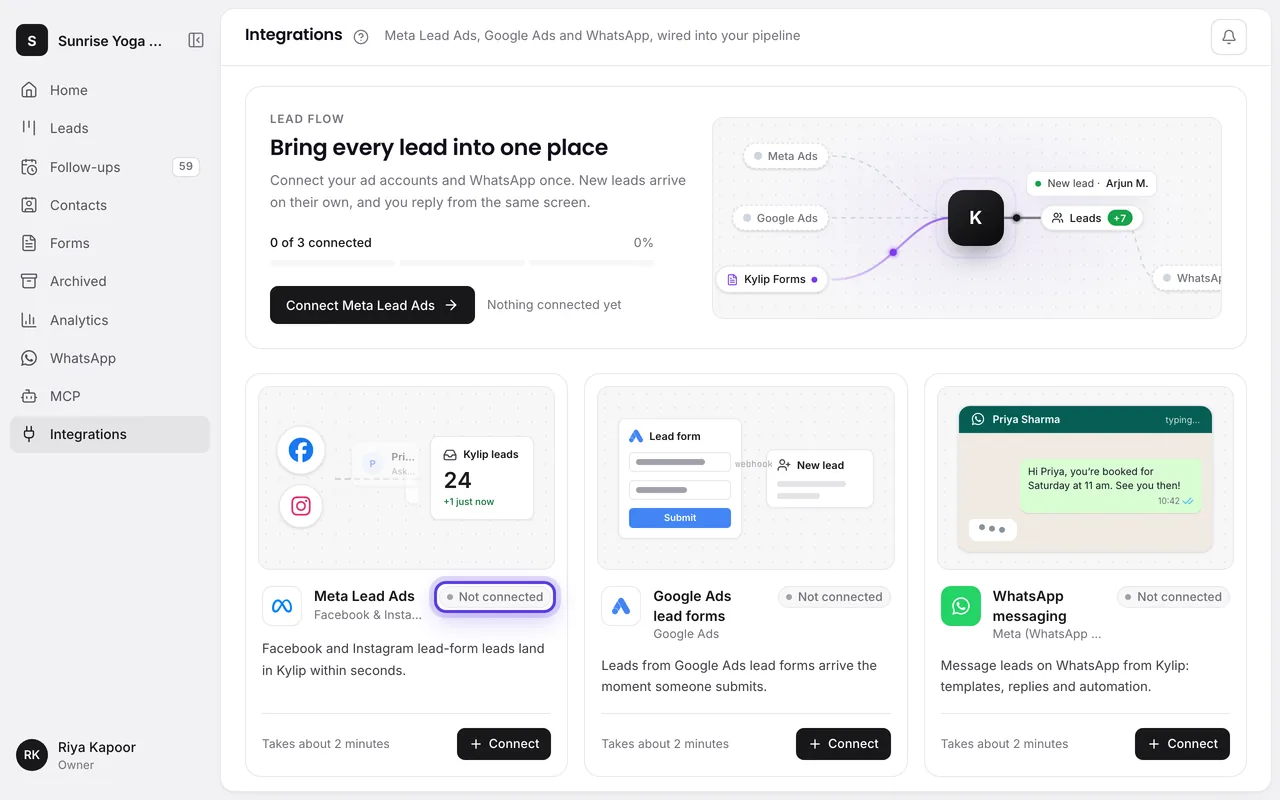
Each integration shows its status. This workspace has nothing connected yet. Step 2: Reconnect and keep the Page ticked
Open Meta Lead Ads. If a Page shows Access lost or Not receiving leads, click Reconnect and keep that Page selected when Facebook asks. This happens after a Facebook password change or when someone removes Kylip's access.
Step 3: Send a test lead
Use Meta's Lead Ads Testing Tool (developers.facebook.com/tools/lead-ads-testing) to send a test lead through your form. It should appear in Leads shortly after.
Google Ads leads aren't arriving
Step 4: Check the webhook URL and key
In Integrations, open Google Ads lead forms. The Webhook URL and Key there must be pasted exactly into each Google Ads lead form that should send leads.
Step 5: Send test data from Google Ads
In your lead form in Google Ads, click Send test data. Kylip's status changes to Test received. Test leads aren't saved to your Leads unless Save Google's test leads is on.
Step 6: Use the right Google Ads account
Set it up in the Google Ads account that runs your ads, not a manager account. Save the form in Google Ads after pasting the details. See Google Ads lead forms.
Form responses aren't arriving
Step 7: Check the form is Live
In the left menu, click Forms. A form must show Live to collect responses. Draft forms aren't live yet, and Closed forms show your closed message instead.
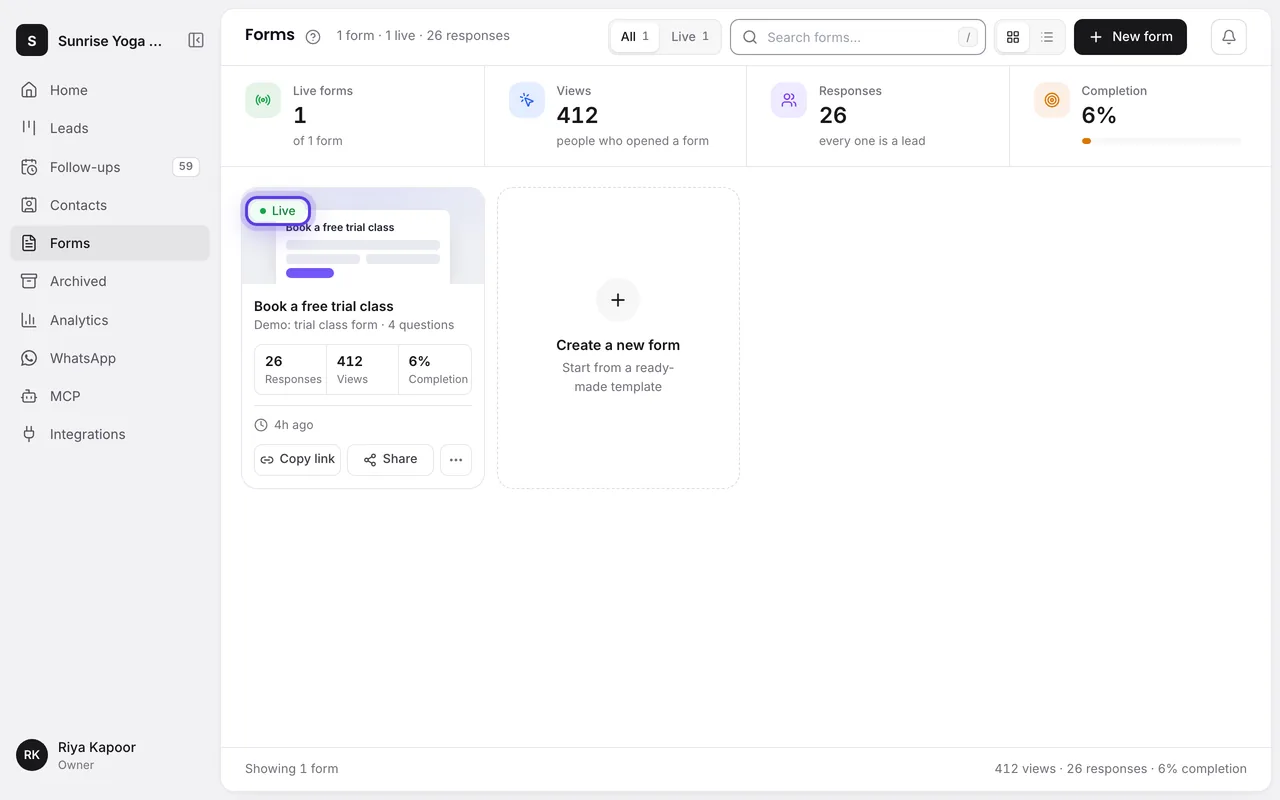
“Book a free trial class” is Live, so its link collects responses. Step 8: Publish or reopen the form
Open the form. If it says Publish your form first, click Publish form. If it says This form is closed, click Reopen form.
Step 9: Share the right link
Make sure your website, Instagram bio or ad uses this form's own link. Fill it in once yourself: the response should appear in Leads within seconds. See Lead forms.
WhatsApp messages aren't sending
When a message can't be sent, Kylip opens a box that says what happened and how to fix it. These are the most common reasons.
Step 10: Check WhatsApp is connected
In Integrations, look at WhatsApp messaging. If it says Needs attention, open it and click Reconnect WhatsApp. Your templates and settings stay as they are.
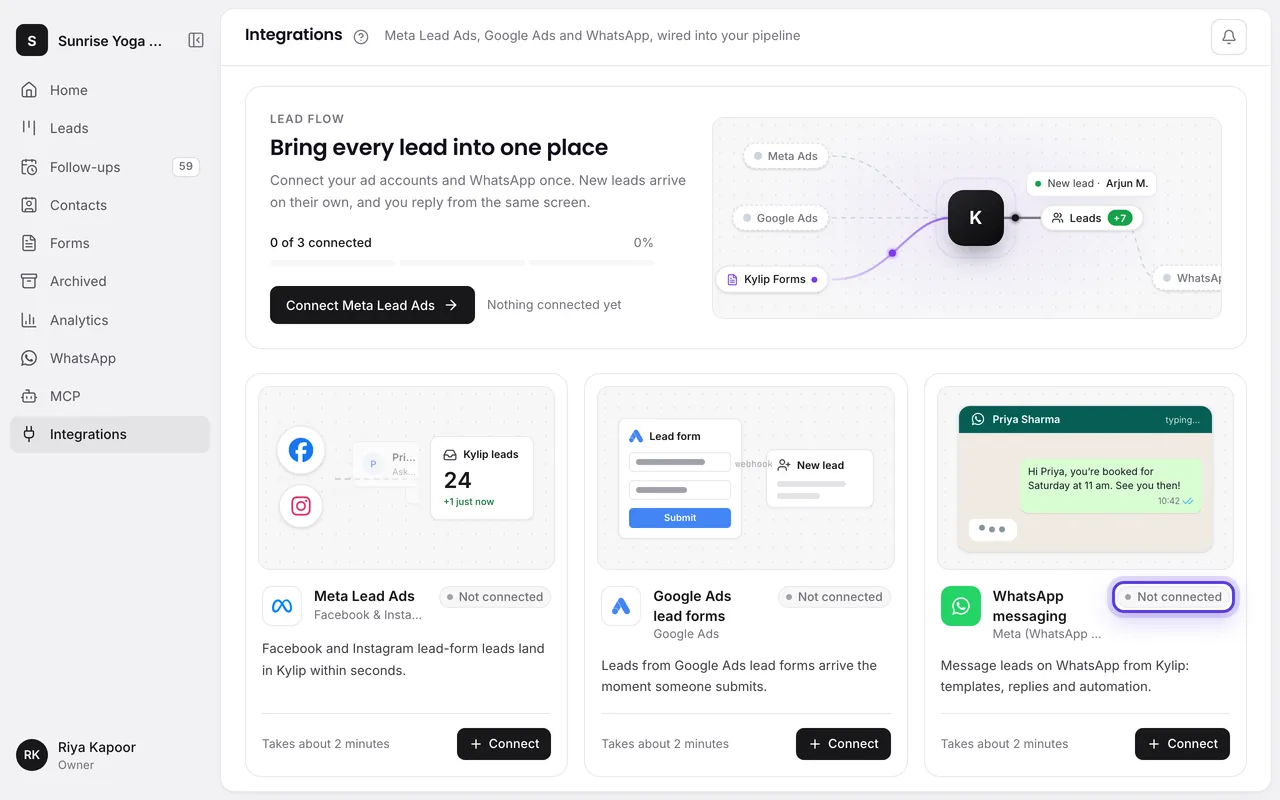
Not connected yet? Follow the WhatsApp guide first. Step 11: Confirm your email address
WhatsApp stays off until you confirm your email. If you see Confirm your email at the top of Kylip, click Enter code and type the 6-digit code we emailed you.
Step 12: Use a template after 24 hours
WhatsApp lets you send a normal message only within 24 hours of the lead's last message. To start a chat, or after 24 hours, send an approved template instead.
Step 13: Check the phone number
If Kylip says “This phone number can’t get WhatsApp messages”, edit the lead's number to include the country code, for example +91 98765 43210. Save it and send again.
Step 14: Add a payment method in Meta
If Kylip says “Add a payment method in WhatsApp Manager”, open WhatsApp Manager (business.facebook.com), go to Payment settings and add a card. Meta charges for template messages, and new numbers have no payment method yet.
My WhatsApp template was rejected
Step 15: Open your templates
In the left menu, click WhatsApp, then Templates. Click Rejected to see only the rejected ones.

Templates are on the WhatsApp page. They need WhatsApp connected. Step 16: Read Meta's reason
Click the template. Kylip shows Meta's reason in plain words, for example “It reads as promotional, so it must be filed under Marketing, not Utility.”
Step 17: Edit and resubmit
Click Edit and resubmit, change what Meta mentioned (wording, category or variables), and send it again. Most reviews finish within minutes; some take up to 24 hours.
I can't sign in, or didn't get the code email
Step 18: Check your email and password
If Kylip says “Those credentials do not match an account.”, check the email for typos and try again. Use the email you signed up or were invited with.
Step 19: Reset your password
On the sign-in page, click Forgot password? and enter your email. Open the link we email you within an hour and choose a new password.
Step 20: Find the code email
Codes and links come from Kylip (info@kylip.app). Check your spam and Promotions folders. Still nothing? Click Resend code in the code box (it appears after 30 seconds) or click Enter code on the Confirm your email banner.
My payment failed
Step 21: Try again in the Razorpay window
Razorpay shows why the payment failed and lets you try again. Try another UPI app or card. If Kylip says “Could not load the payment window. Check your connection and try again.”, check your internet and reload.
Step 22: Set up payment again
If Billing shows Payment due, your renewal didn't go through. Click Set up payment again in Billing and pay with another card or UPI app.
Step 23: Money deducted but plan not active?
Razorpay usually returns a failed payment by itself within a few working days. If your plan isn't active within 24 hours of a successful payment, email info@kylip.app with your workspace name and Razorpay payment ID. See Plans and billing.
Common problems
A lead arrived, but my team member can't see it.
Team members who see only their own leads don't see leads assigned to someone else. Assign the lead to them, or change what they can see. See Your team.
My workspace says “Read-only”.
Your free trial or plan has ended. You can still see your leads and new leads keep arriving, but changes are paused until you choose a plan in Billing.
Kylip says “Kylip couldn't reach Meta”.
Nothing was sent or changed. Wait a minute and try again. If it keeps happening, message us on WhatsApp.
My confirmation link says “This link has expired”.
Confirmation links work once and for two days. Sign in, and we will send a fresh one.
Was this helpful? Message us on WhatsApp
Still stuck?
Message the Kylip team on WhatsApp and a real person will help you. Or email info@kylip.app.